World of Level Design™
Tutorials to Becoming the Best Level Designer and Game Environment Artist (since 2008)

Quick Tip Series is created for beginners and advanced UE5 environment artists.
These are quick, useful tips to help improve, refine, fix and remind you of tools, techniques and principles you may have not known or forgotten about.
All videos are short and straight to the point.
The following Part 4 includes the following 10 Quick Tips:
- UE5 Tip #31: Packed Texture w/Roughness, Metallic, AO - Must Have sRGB Disabled on UE5 Import
- UE5 Tip #32: Fix UE5 Refraction Material Input is Disabled and Which Refraction Method to Use for Water
- UE5 Tip #33: FIX Invalid Material for Water or Glass with Translucency on Nanite Static Meshes
- UE5 Tip #34: Change Character Walk Speed in Blueprint Game Template First + Third Person
- UE5 Tip #35: Add Light to Character Blueprint Game Template First + Third Person (Found Footage Lighting)
- UE5 Tip #36: Remove Light Shape Reflections from Surrounding Surface Material Geometry
- UE5 Tip #37: Fix - Can't Select Glass Objects (Translucent Surface Selection)
- UE5 Tip #38: Starter Content is Gone - How to Add Starter Content into 5.6+ or Later Versions of UE5
- UE5 Tip #39: How to Get UE5 Static Mesh Import Dialog Menu Back on Reimports
- UE5 Tip #40: Export Any Texture Out of UE5 to Use and Modify
Quick Tip Series:
- UE4: Quick Tip Tutorial Series Part 1 (Tips #1-10)
- UE4: Quick Tip Tutorials Part 2 (Tips #11-20) - Landscape Edition
- UE5: Quick TIp Tutorials Part 3 (Tips #21-30)
Let's begin!
UE5 Tip #31: Packed Texture w/Roughness, Metallic, AO - Must Have sRGB Disabled on UE5 Import
A packed texture is a single image file that combines three types of information, usually created in software like Substance Painter. Each color channel in the texture holds a different piece of data, such as:
- Red channel: Ambient Occlusion (how shadows fall on surfaces).
- Green channel: Roughness (how shiny or dull a surface is).
- Blue channel: Metallic (how metallic a surface looks).
When you import this packed texture into UE5, you need to set it up correctly so the material looks right. Here's what to do, step by step:
- Import the packed texture.
- Double-click the texture in UE5 to open its settings.
- Find the sRGB checkbox and turn it off. (sRGB is for color images, but this texture uses grayscale values for data, so it needs to be in linear space).
- Save the changes

- Make a new material in UE5 and open the Material Editor.
- Add Textures to the Material
- Since you turned off sRGB, the texture's Sampler Type should already be set to Linear Color (this is good!).

Connect the channels to the right inputs:
- Red channel > Ambient Occlusion input.
- Green channel > Roughness input.
- Blue channel > Metallic input.

Why This Matters: If sRGB is left on, the texture stays in "color" mode, which messes up the grayscale values. Your material won't look right and won't follow PBR (Physically Based Rendering) rules, making it look off.
By turning off sRGB and using Linear Color, the values for Ambient Occlusion, Roughness, and Metallic work correctly.
Fixing Mistakes: If you already imported the texture with sRGB on and it's not looking right.
- Open the texture, turn off sRGB, and save.
- Go back to the Material Editor. If you see an error, change the Sampler Type from "Color" to Linear Color.
UE5 Tip #32: Fix UE5 Refraction Material Input is Disabled and Which Refraction Method to Use for Water
Refraction is what makes water, glass, or ice look realistic by bending and distorting light as it passes through. Without it, your materials might look flat, missing that wavy, distorted effect you see in real water.
By default, refraction is disabled in UE5 but it's easy to turn on. Here's how to enable refraction and make your water material pop, step by step.
Step 1: Enable Refraction in Your Material
- Open the material you're using for your water.
- Select the main Material node.
- Go to the Details panel and search for "Refraction" or scroll down to find it.
- Change the Refraction Method from None to one of the available options.

- Index of Refraction: This is the physically accurate option, great for most materials on small objects. It uses a specific value to calculate how light bends.
- Pixel Normal Offset: This is better for large surfaces like bodies of water. It uses the normal map (which simulates waves and ripples) to create distortion, giving a more natural look.
Step 2: Set Up the Refraction Input
- Create a Constant node (hold 1 and left-click in the Material Editor).
- Convert it to a Parameter so you can tweak it later and name it (e.g., "Refraction Amount").
- Plug this node into the Refraction input of the main material node.

Step 3: Pick the Right Method for Water
Index of Refraction (1.33) works well for small objects, but on large bodies of water, it can cause visual glitches or artifacts, making the water look broken.

Pixel Normal Offset is the better choice for large water surfaces. It uses the normal map (already connected to the Normal input) to create realistic wave-like distortions without artifacts. Switch to Pixel Normal Offset with a value like 1.05 and the water will look much better, with subtle distortions that mimic real water.


Step 4: Fine-Tune
With Pixel Normal Offset, the normal map drives the distortion, so you don't need a physically accurate value. Experiment with different values to get the look you want.
Unreal Engine Doc: Using Refraction
Unreal Engine Doc: Refraction Using Pixel Normal Offset
UE5 Tip #33: FIX Invalid Material for Water or Glass with Translucency on Nanite Static Meshes
When working with translucent materials like water, glass or ice in UE5, you may encounter a warning in the output log: "Invalid material being used on a Nanite static mesh".

Nanite Static Meshes do not currently support materials with translucency (as of UE5.5 and earlier). While the material may appear fine in the level, the warning indicates an issue that needs to be fixed.
Step 1: Disable Nanite Support for the Static Mesh
Select the Static Mesh using the invalid material and open it in Static Mesh Editor.
In the Details panel, find the Nanite Support option and uncheck it.

Save the changes to the Static Mesh.
Step 2: Disable Nanite Support for the Material
In the Content Browser, find the translucent material.
Double-click the material to open it in the Material Editor.Click the main material node in the graph. In the Details panel, search for "Nanite" and uncheck Used with Nanite.

Save the material.
Result: Once both Nanite settings are disabled, the "Invalid material" warning will disappear from the output log, and your translucent materials will function correctly without Nanite-related issues.
UE5 Tip #34: Change Character Walk Speed in Blueprint Game Template First + Third Person
The default walking speed in UE5 Blueprint templates can feel too fast, causing players to rush through environments. Slowing it down enhances exploration, while increasing it can add intensity.
Adjusting Walking Speed in the First Person Template

- Open the First Person Character Blueprint: In the Content Browser, navigate to the First Person folder, then into the Blueprints subfolder.
- Open the blueprint named BP_FirstPersonCharacter.
- Access the Event Graph: Inside the Blueprint, go to the Event Graph tab.
- Add the Event Begin Play Node: Right-click in an empty space in the graph. Search for Event Begin Play and add the node.
- Set the Max Walk Speed: Drag a wire from the Event Begin Play node's execution pin. Search for Set Max Walk Speed (disable context-sensitive search if needed) and add the node.
- The node will automatically connect.
- Specify the Character Movement Component: Drag from the Target pin of the Set Max Walk Speed node. Search for Get Character Movement to connect it.
- Adjust the Speed Value: In the Set Max Walk Speed node, set the Max Walk Speed value. 0 means no movement. The default is typically 300. For a slower pace, try 200.
- Compile and Save: Click Compile and Save in the Blueprint.
- Test the Changes: Play the level and move the character. You'll notice a slower, more deliberate walking speed.
Adjusting Walking Speed in the Third Person Template
The process for the Third Person template is slightly different due to an existing Event Begin Play node.

Here's how to adjust the walking speed:
- Open the Third Person Character Blueprint: In the Content Browser, navigate to the Third Person folder, then into the Blueprints subfolder.
- Open the blueprint named BP_ThirdPerson.
- Locate the Event Begin Play Node: In the Event Graph, find the existing Event Begin Play node.
- Note: You cannot add a second Event Begin Play node, so we'll extend the existing setup.
- Add the Max Walk Speed Node: Locate the end of the execution chain (after the Add Input Mapping Context node). Drag a wire from the execution pin of the last node. Search for Set Max Walk Speed (disable context-sensitive search) and add the node.
- Specify the Character Movement Component: Drag from the Target pin of the Set Max Walk Speed node. Search for Get Character Movement and connect it.
- Set the Speed Value: In the Set Max Walk Speed node, set the Max Walk Speed to 200 (or your desired value).
- Compile and Save: Click Compile and Save in the Blueprint.
- Play the level and observe the slower walking speed.
UE5 Tip #35: Add Light to Character Blueprint Game Template First + Third Person (Found Footage Lighting)
Attaching a light to a character can simulate dynamic lighting, such as a flashlight or a camera-mounted light, enhancing immersion in dark environments.
The steps below apply to both First Person and Third Person templates in UE5.
Attaching a Light to the First Person Character
Let's start by adding a light to the First Person character, attaching it to the camera for a found footage effect.

Here is the setup:

- Open the First Person Character Blueprint: In the Content Browser, navigate to the First Person folder, then into the Blueprints subfolder.
- Open the BP_FirstPersonCharacter Blueprint.
- Access the Viewport Tab: Switch to the Viewport tab to work with the character's components.
- Select the Camera: In the Components panel (or directly in the viewport), select the FirstPersonCamera component. This ensures the light follows the camera's movement.
- Add a Light Component: With the camera selected, click Add in the Components panel. Search for a light type. For this example, I'll use a Rectangular Light for its soft shadow effect (point lights or spotlights also work).
- Adjust Light Properties: With the Rectangular Light selected, go to the Details panel.
- Compile and Save: Click Compile and Save in the Blueprint.
Attaching a Light to the Third Person Character
For the Third Person character, you can attach a light to either the camera or the character's mesh. We'll cover both methods.
Option 1: Attaching a Light to the Camera

Here is the setup:

- Open the Third Person Character Blueprint: In the Content Browser, navigate to the Third Person folder, then into the Blueprints subfolder.
- Open the BP_ThirdPerson Blueprint.
- Access the Viewport Tab: Switch to the Viewport tab.
- Select the Camera: In the Components panel, select the Camera component.
- Add a Light Component: Click Add and search for Rectangular Light (or your preferred light type). The light will attach to the camera, moving with it as you pan.
- Adjust Light Properties: In the Details panel, tweak settings like intensity, color, or size as needed. You may need to test and refine these settings based on the level's appearance.
- Compile and Save: Click Compile and Save.
Option 2: Attaching a Light to the Character's Mesh

Here is the setup:

- Return to the Third Person Blueprint: If you previously added a light to the camera, select and delete it in the Viewport tab.
- Select the Character Mesh: In the Components panel, select the Mesh component (the character's model).
- Add a Light Component: Click Add and search for a light. This time, we'll use a Spotlight for a focused beam effect. The light will attach to the character mesh.
- Position and Rotate the Light: In the Viewport, reposition the light to align with a specific part of the character (e.g., a chest-mounted flashlight). Lower the grid snap to 1 unit for precise positioning. Rotate the light to point forward, simulating a flashlight or wearable light source.
- Adjust Light Properties: In the Details panel, modify the spotlight's intensity, cone angle, or color as needed. Test and adjust based on the level's lighting.
- Compile and Save: Click Compile and Save.
Note: Since the light is attached to the character, camera rotation may feel slightly disconnected. This method works best when the light source is meant to be visibly attached to the character.
Experiment with different light types (rectangular, point, or spotlight) and settings to achieve the perfect look.
UE5 Tip #36: Remove Light Shape Reflections from Surrounding Surface Material Geometry
There are times when you need to add additional lighting around certain areas. Usually around Static Meshes with Emissive properties that don't give off enough light themselves.
When you do add a light such as a point light or spot light, you get unwanted reflective highlights from these light sources on surround material surface geometry.

Here is how to remove light reflections from nearby surfaces from unwanted lights.
Solution #1: Disable Specular Scale

- Select the light
- Search for the Specular Scale
- Set the Specular Scale to 0. This removes the highlight from surrounding surfaces without affecting the light's emission
- This method removes the reflective highlight, if you need to keep it but soften the effect, go with Solution #2
Solution #2: Increase Soft Source Radius

- Select the light
- Increase Soft Source Radius value, higher value diffuses the light, removing the sharp highlight from reflective surfaces while maintaining the emitted glow
UE5 Tip #37: Fix - Can't Select Glass Objects (Translucent Surface Selection)
Can't select glass or other translucent objects, instead selecting every object behind it?
Here is how to fix it.
Press T.
- T = Allow Translucent Selection
UE5 Tip #38: How to Add Starter Content into 5.6+ or Later Versions of UE5
Since UE5.6, Epic has officially discontinued and removed Starter Content pack. The classic checkbox that used to appear when creating a New Project (or the "Add Starter Content" option in existing projects) is gone.
Fortunately, the assets themselves still work perfectly in newer engine versions. You just need to bring them in manually from an older engine version (5.5 or earlier).
What You'll Need
At least 2 engine versions installed:
- One version 5.5 or earlier, this is your source of Starter Content.
- One version 5.6 or later, this is your target project.
Method 1: Create Temporary Project in 5.5 or Earlier
- Open the Epic Games Launcher.
- Switch to your older engine version (5.5 or below).
- Launch the Project Browser > New Project.
- Choose any template.
- In the project settings, check "Include Starter Content".
- Click Create.

Now you have a fresh project that contains the official Starter Content.
Method 2: Use an Existing Older Project
If you already have a project made in 5.5 or earlier that contains Starter Content, you can skip creating a new one.
Copy the Starter Content Folder
- In the Epic Games Launcher, go to My Projects section.
- Right-click the older project (or the temporary one you just made) and choose Show in Folder.
- Navigate into the Content folder of the project.
- You'll see a folder named StarterContent.
- Copy the entire StarterContent folder (Ctrl+C).
Paste It into Your 5.6+ Project
- Create a brand-new project or use an existing 5.6+ project you're already working on.
- Right-click that project in Launcher and choose Show in Folder.
- Go into Content folder of that project.
- Paste the StarterContent folder here (Ctrl+V).
Important: The folder must be directly inside the main Content folder of your new project (not inside any subfolder).
Verify It Works
- Open your 5.6+ project in the editor.
- In the Content Browser, you should now see the StarterContent folder.
- Browse its subfolders (Props, Materials, Shapes, Audio, etc.) — everything is there.
- Drag any asset into the viewport to test.
Everything should work exactly as it did in older versions.
UE5 Tip #39: How to Get UE5 Mesh Import Dialog Menu Back on Reimports
In UE5, when you reimport a Static Mesh by right-clicking it in the Content Browser and selecting Reimport, the engine uses the previous import settings without showing the import options dialog.
Here is how to bring back the Static Mesh Import Dialog during reimport, allowing you to tweak options not available in the Static Mesh Editor.
Method 1: Reimport by Importing the Same FBX File Again
The quickest workaround to access the full import dialog:
- Use the Import button in the Content Browser.
- Select the same FBX file you originally used for the mesh.
- Click Open.

Unreal Engine detects an existing asset with the same name and will ask: "Do you want to convert this import to a reimport?"
Select "No".

This treats the process as a new import, opening the full import dialog where you can modify settings.
After adjusting options, click Import.
You'll then be asked to override the existing asset, select Yes to replace it with the new updated mesh settings.

Method 2: Enable "Show Import Dialog at Reimport" in Project Settings
You could also enable the import options to appear automatically on every reimport:
- Go to Edit > Project Settings.
- Search for "reimport".
- Under Engine > Interchange, check Show Reimport Dialog.

Now, right-clicking a static mesh and selecting Reimport will open the import options dialog every time.
This is ideal during iterative workflows but can be disabled later for faster reimports.
Method 3: Reimport with a New File (When Source FBX is Moved or Renamed)
If the original FBX file has been renamed, moved or replaced:
- Right-click the static mesh in the Content Browser and select Reimport with New File.
- Browse to the new or updated FBX file and select it.

This re-associates the mesh with the new source file.
UE5 Tip #40: Export Any Texture Out of UE5 to Use and Modify
UE5 comes packed with textures that you may want to reuse, modify or incorporate into projects outside the engine. Exporting these textures is straightforward.
Step 1: Locate the Texture in Starter Content
Open your UE5 project and in Content Browser navigate to the folder where the texture you want to export is held
Step 2: Export the Texture
- Right-click the texture you want to export
- Go to Asset Actions and choose Export

This opens the Save menu.
- Choose save location
- Rename the file if you want something different from the default
- Select the file format (PNG, TGA, DDS, HDR, etc.)
- Click Save and you're done

Recommended for most cases: PNG (great quality + transparency support) or TGA.
This method will work for any texture type in UE5.
UE5 Tutorial Courses
Learn to use and create with Unreal Engine 5 with the following courses.
- UE5 Fundamentals Vol1: the only tutorial course you'll need to get started with UE5.
- UE5 Retro Office Project: learn to create and light beautiful interior environments from start to finish in only 9 hours w/UE5.
- UE5 HDRI Lighting: learn how to realistically light UE5 environments with HDRIs.

SUBSCRIBE & GET FREE UE5 PDF GUIDE
Subscribe to receive NEW/UPDATED and FREE "UE5 Beginner's Quick Start Guide" PDF (90 pages).

Visit this page for more info about the guide...
TOP 7 TUTORIAL COURSES FOR 2026
 Modular Environment Design Masterclass
 Maya Foundation: Home-Study Course
 Substance 3D Painter Essentials
 UE5: Fundamentals Vol.1
 UE5: Retro Office Project
 UE5: Master Material Creation
 Preproduction Blueprint
TUTORIAL CATEGORIES
UE5 FUNDAMENTALS VOL.1 COURSE
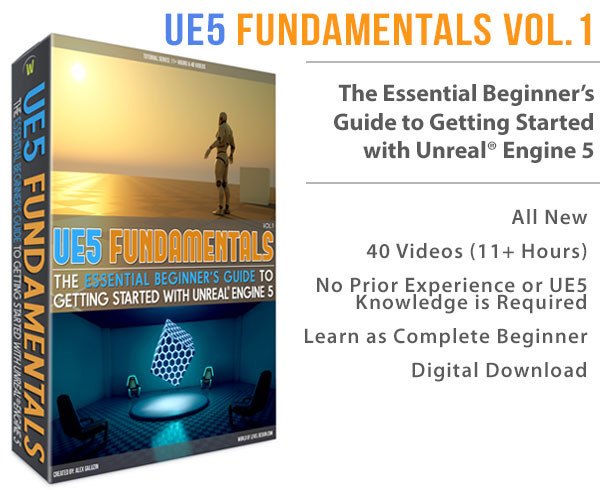
UE5: RETRO OFFICE PROJECT

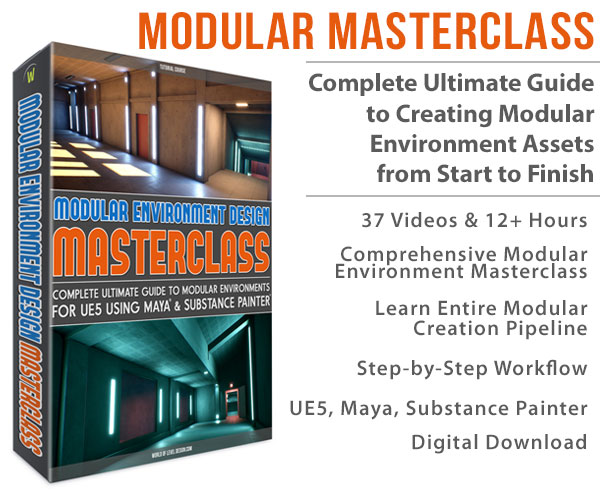
MODULAR ENVIRONMENTS MASTERCLASS
LEARN THE PREPRODUCTION PROCESS

ABOUT WoLD & ALEXG

My name is AlexG. I am self-taught level designer, game environment artist and the creator of World of Level Design.com. I've learned everything I know from personal experimentation and decades of being around various online communities of fellow environment artist and level designers. On World of Level Design you will find tutorials to make you become the best level designer and game environment artist.
Home Terms of Use/Trademarks/Disclaimers Privacy Policy Donate About Contact
All content on this website is copyrighted ©2008-2024 World of Level Design LLC. All rights reserved.
Duplication and distribution is illegal and strictly prohibited.
World of Level Design LLC is an independent company. World of Level Design website, its tutorials and products are not endorsed, sponsored or approved by any mentioned companies on this website in any way. All content is based on my own personal experimentation, experience and opinion. World of Level Design™ and 11 Day Level Design™ are trademarks of AlexG.
Template powered by w3.css